
Connect Claude via MCP
Connect Serenities to Claude using MCP connectors. Once connected, you can use all Serenities tools — databases, sites, flows, and more — directly inside Claude chat.
Before You Start
You'll need:
- A Serenities AI account (free or paid)
- A Claude AI subscription (Pro, Team, or Enterprise) at claude.ai
Step-by-Step Guide
Log in to Claude AI
- Go to claude.ai
- Sign in with your Anthropic account
Open a Chat and Go to Connectors
- Open any existing chat or start a new one at claude.ai/new
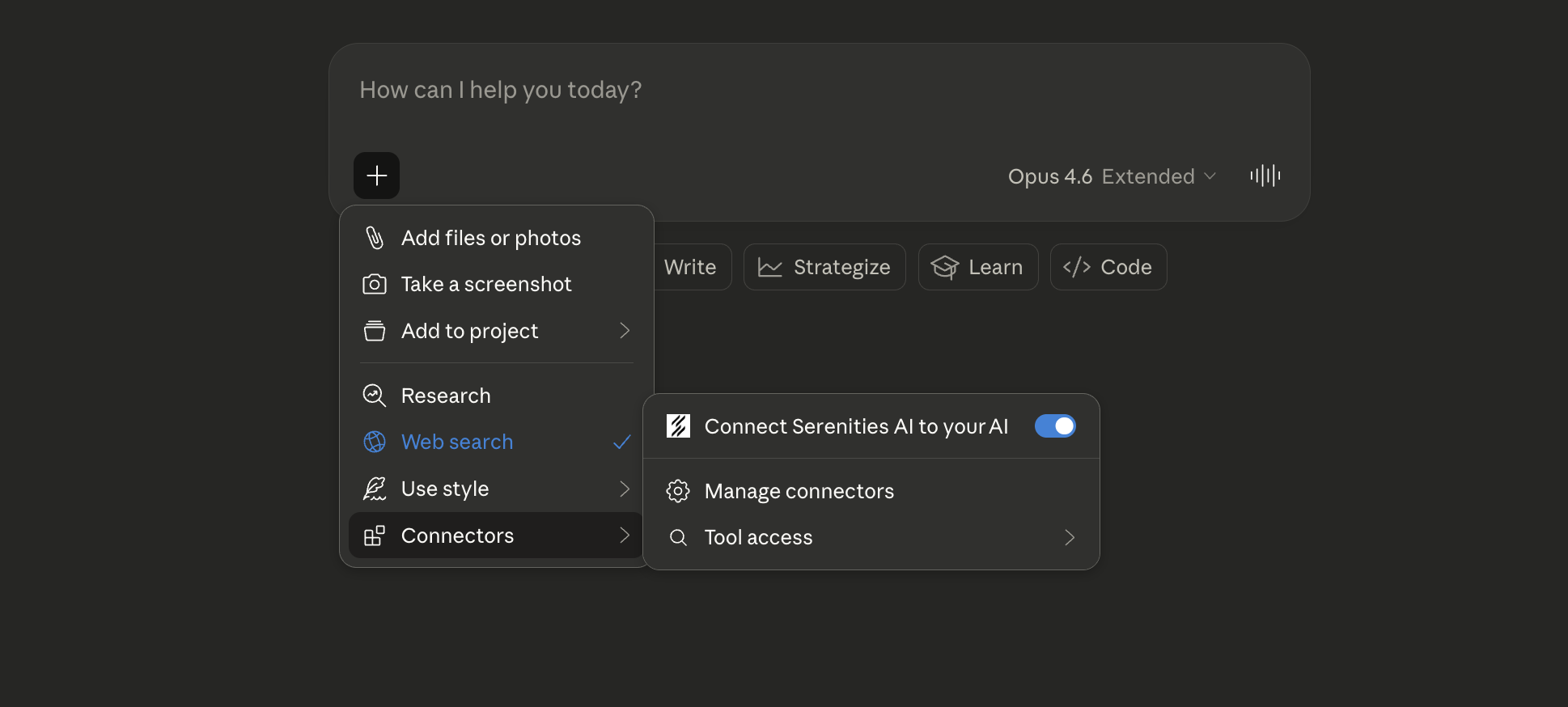
- Click the + icon at the bottom-left of the chat input
- Click "Connectors" at the bottom of the menu
- Click "Manage connectors"
Add a Custom Connector
- On the Connectors page, click the + icon in the top-right
- Select "Add custom connector"

Enter the Serenities MCP URL
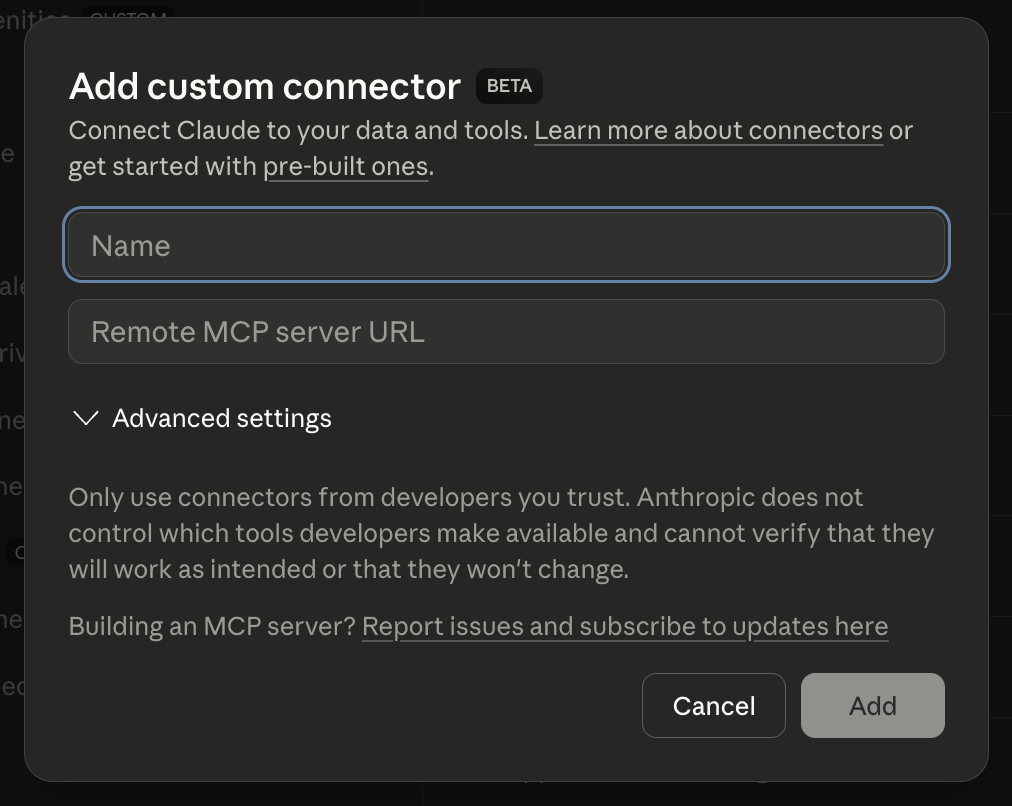
A dialog will appear asking for a name and MCP server URL.
- Name: Enter any name (e.g.
Serenities AI) - Remote MCP server URL: Paste the following URL:
- Click "Add"
Connecting multiple accounts?
Claude only allows each MCP server URL to be registered once. If you need to connect multiple Serenities accounts, add a unique slug to the URL:
# Account 1 (default)
https://app.serenitiesai.com/api/v1/mcp
# Account 2
https://app.serenitiesai.com/api/v1/mcp/account2
# Account 3
https://app.serenitiesai.com/api/v1/mcp/work
The slug just makes the URL unique — authentication still happens via OAuth. Use any text you like.
Connect and Authorize
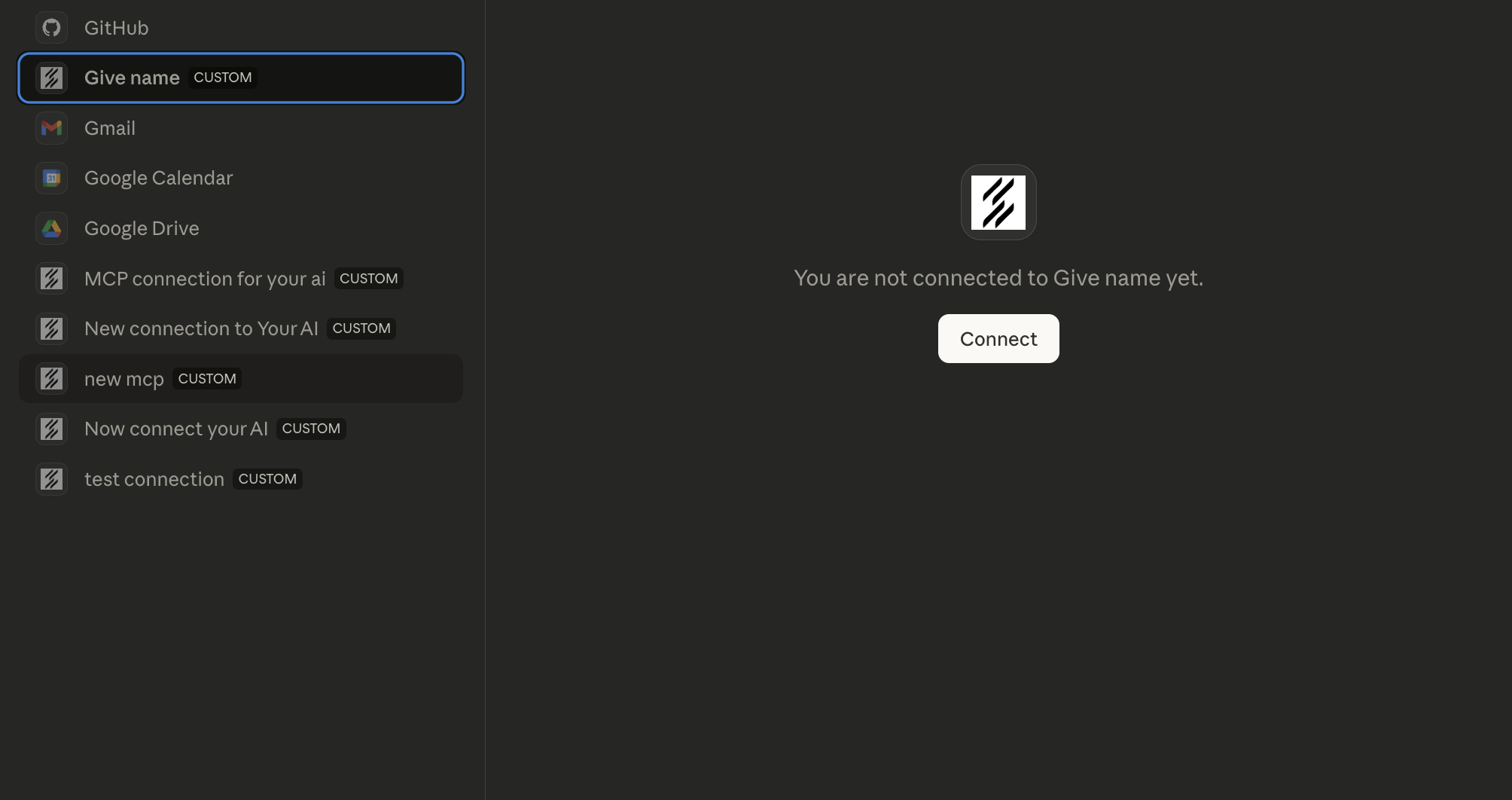
- Your new connector will appear in the "Not connected" list
- Click on it to select it, then click the "Connect" button on the right panel
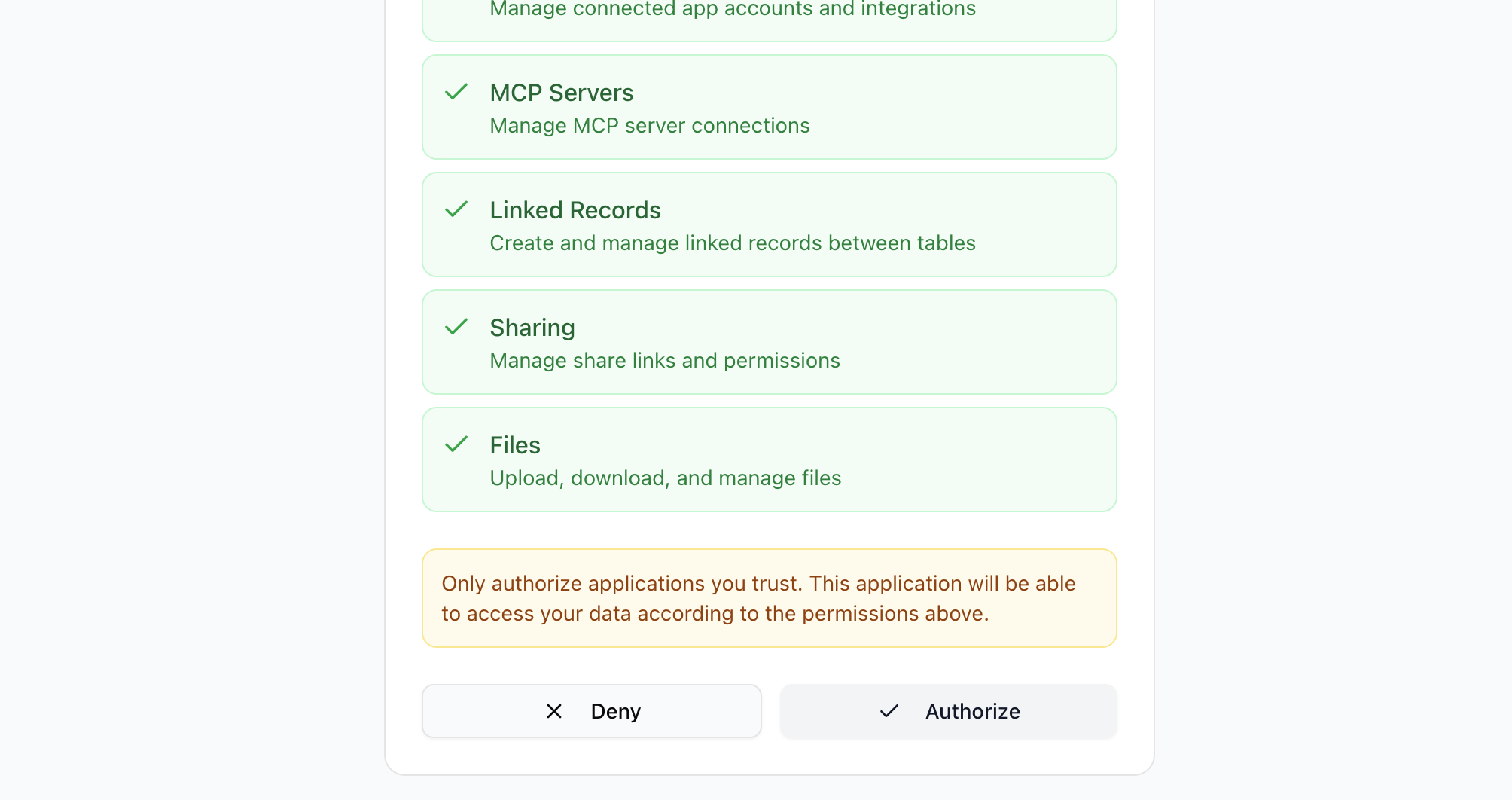
- An OAuth authorization page will open showing the permissions Serenities needs. The Read only button at the top ticks only tools that look and change nothing — and it leaves out the tools that return secret links (webhook URLs, email-trigger addresses), so a Read-only connection can’t read or use them. Read & write ticks every tool except the ones that delete, remove, reset or stop something
- Click "Authorize" to grant access
Enable the Connector in Chat
- Go back to any Claude chat
- Click the + icon again
- Go to "Connectors"
- Toggle on your Serenities AI connection
You're connected!
Claude can now access all your Serenities AI tools. Try asking Claude to create a database, build an app, or run a flow.
What You Can Do Now
With Serenities connected to Claude, try asking Claude things like:
"Create a customer database with name, email, and plan fields"
"Build me a landing page for my SaaS product"
"Create a flow that sends an email when a new row is added"
"Show me all my site projects"
Troubleshooting
Connector not showing up after adding
Refresh the Manage Connectors page. If it still doesn't appear, try adding it again — make sure the URL is exactly https://app.serenitiesai.com/api/v1/mcp
OAuth authorization page doesn't open
Check that pop-ups are not blocked in your browser. The authorization page opens in a new window. Allow pop-ups for claude.ai and try again.
"URL already registered" error
Claude only allows each MCP URL once. If you already added this URL, find the existing connector in your list. To connect a second account, add a unique slug like /api/v1/mcp/myname
Claude doesn't seem to use the connector
Make sure you toggled the connector on in the chat. Click + → Connectors and check that the toggle is blue/enabled. You need to enable it for each new chat.
Security & Privacy
- The connection uses OAuth 2.0 — Claude never sees your Serenities password
- You can revoke access anytime from the Manage Connectors page
- Claude only accesses your Serenities data when you explicitly ask it to
- All communication between Claude and Serenities is encrypted (HTTPS)